
Vectorizer.AI does one job: it turns a bitmap into a vector file. Most people meet it through the interactive web app on the front page, where you drop in a PNG and look at the result. This review is about the other door. The Vectorizer AI API is what you reach for when nobody is sitting in front of a screen and your own software does the converting, inside a mobile app, a print pipeline or an overnight batch job.
Working through the Vectorizer AI API changes which questions matter. Instead of asking whether the tracing looks good, you end up asking what a call costs, what happens when a file is too big, how hard you are allowed to push, and whether the output will open in your customers software. Vectorizer.AI publishes an unusual amount of detail on all four.
How this review was done. This is a desk review. Everything below comes from pages Vectorizer.AI publishes itself: the developer overview, the API documentation, the full error response list, the output options reference and the pricing page, all read on 4 November 2026. We did not buy an API subscription and we did not push production jobs through the service, so nothing here is a measurement of speed or of tracing quality. What we did do is take the company at its word, put its own numbers next to each other, and show the arithmetic.
What the Vectorizer AI API actually does
The Vectorizer AI API accepts PNG, JPG, WebP, GIF and BMP input and returns SVG, PDF, EPS, DXF or PNG output. The company states that the web app and the Vectorizer AI API run the same tracing engine, so the picture you produce free of charge in the browser is the picture your software will get back. A few minutes on the front page therefore tells you whether the results suit your images at all.
The surface the Vectorizer AI API gives you is small. There are four endpoints: a POST that vectorizes an image, a POST that downloads a result you already produced, a POST that deletes a stored result, and a GET that reports your account status. Everything else, and there is a lot of it, is parameters on the first call.
Three ways to call the Vectorizer AI API
Vectorizer.AI offers three integration paths and one specification format, and the developer overview is unusually direct about which is meant for whom.
| Path | Best for | What you get |
|---|---|---|
| Official SDKs | Applications and services | Typed request objects, authentication helpers, binary result handling |
| Command-line client | Batch conversion, CI jobs, shell scripts | One standalone tool you install and call from the terminal |
| Direct HTTP | Custom clients and unsupported languages | Full control over requests, transports and error handling |
| OpenAPI 3.0 | Generated clients and API tooling | Four documents: canonical, code-generation, Swagger-oriented and an APIs.json discovery file |
The SDK list is TypeScript and JavaScript, Java, C# and .NET, Go, PHP and Ruby. Python is the one gap, and the company says so on the page rather than leaving you to find out: the package is prepared and pending PyPI approval. The documentation shows the direct HTTP call in Python anyway, so it is a packaging gap, not a capability gap.
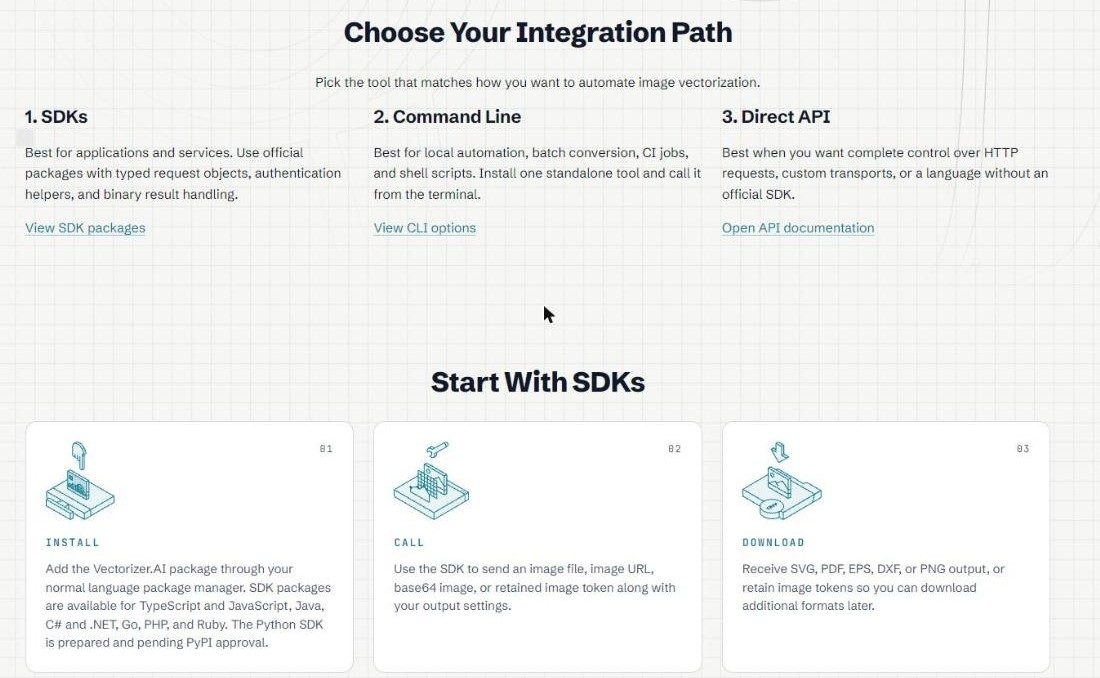
The three integration paths, as the developer overview presents them (screenshot from vectorizer.ai)
Four OpenAPI documents for one Vectorizer AI API sounds like over-provisioning until you have fought a code generator that chokes on nested schemas: a canonical file, a code-generation alias for build scripts that want a dedicated URL, a Swagger variant with flattened schemas, and an APIs.json file for catalogue tools. You can read all of it before spending anything by opening the Vectorizer.AI developer pages.
The Vectorizer AI API credit table, action by action
The credit model of the Vectorizer AI API is the part most reviews skip, and it decides your bill. The Vectorizer AI API does not charge per HTTP request. It charges per action, and the actions cost different amounts.
| Action | Credits | What it covers |
|---|---|---|
| Testing | 0.000 | Integrate and test with no subscription at all |
| Preview | 0.200 | A watermarked PNG you can show an end user before they buy |
| Vectorize | 1.000 | Produce and download the production result |
| Upgrade Preview | 0.900 | Download the production result after a preview call |
| Download Format | 0.100 | Fetch another format of a result you already have |
| Storage Day | 0.010 | Each day a result is kept beyond the first, which is free |
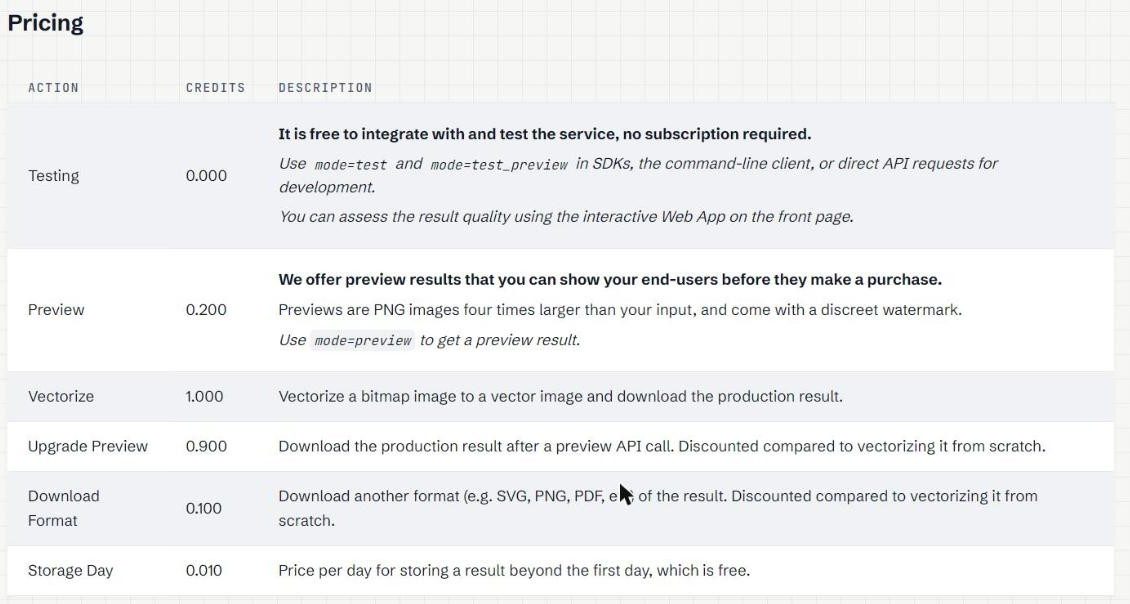
The credit cost of each action, from the API documentation (screenshot from vectorizer.ai)
Two things about the Vectorizer AI API stand out immediately. Testing is genuinely free and needs no subscription: set the mode to test or test_preview and you can build and debug the whole integration before paying anything, which for an API that bills by the image is the most developer-friendly decision on the page. And the other five prices are not a flat rate, so the gaps between them reward some workflows over others.
What a preview actually costs you
Showing a customer a preview before they commit is the obvious pattern for the Vectorizer AI API for a consumer-facing product, and Vectorizer.AI builds for it: a preview returns a watermarked PNG four times larger than your input, and the follow-up download is billed as Upgrade Preview at 0.900 rather than a second full vectorization. The company calls that discounted, and against re-tracing the image it is.
Put the round trip together, though, and the arithmetic is worth knowing before you design the flow. Preview plus upgrade is 0.200 plus 0.900, or 1.100 credits. Going straight to production is 1.000. Letting the customer look first costs 10 per cent more per converted image, and the two numbers never appear next to each other on the pricing page.
| Flow | Credits | At 0.200 per credit | At 0.050 per credit |
|---|---|---|---|
| Vectorize directly | 1.000 | USD 0.200 | USD 0.050 |
| Preview, then upgrade | 1.100 | USD 0.220 | USD 0.055 |
| Preview that never converts | 0.200 | USD 0.040 | USD 0.010 |
Ten per cent is a fair price for a shop window, and the third row is why the design works: a preview the customer walks away from costs 0.200 instead of a wasted 1.000. If most previews convert, go straight to production. If most are browsers, the preview flow wins. The Vectorizer AI API publishes enough detail to work out which of those you are, which is not something every vendor allows.
Downloading extra formats is where the Vectorizer AI API saves money
A Vectorizer AI API print workflow rarely wants one file. It wants the SVG for the web, the PDF for the proof, the DXF for the cutter and a PNG thumbnail for the order screen. Four vectorize calls would be four full credits, and the Vectorizer AI API is built so you do not have to do that: send policy.retention_days greater than zero, take the X-Image-Token header from the response, and each additional format costs 0.100 instead of 1.000, with no re-tracing and no second upload.
| Formats wanted | Naive cost | With an image token | Saved |
|---|---|---|---|
| 1 | 1.000 | 1.000 | 0 per cent |
| 2 | 2.000 | 1.100 | 45 per cent |
| 3 | 3.000 | 1.200 | 60 per cent |
| 4 | 4.000 | 1.300 | 67.5 per cent |
| 5 (all of them) | 5.000 | 1.400 | 72 per cent |
Every output format the Vectorizer AI API supports, for one image, is 1.400 credits. At the cheapest published rate that is seven cents. The same token also lets you re-vectorize the upload with different processing options, saving the bandwidth and latency of sending the file again.
Storage days and the 100-day break-even
Keeping a result on the Vectorizer AI API servers costs 0.010 credits per day after the first day, which is free. Small enough to ignore, right up to the point where it is not.
| Question | Arithmetic | Answer |
|---|---|---|
| When does storage cost as much as re-tracing? | 1.000 / 0.010 | 100 days |
| When does storage cost as much as one extra format? | 0.100 / 0.010 | 10 days |
| A result kept for a year | 364 x 0.010 | 3.640 credits |
So the Vectorizer AI API rule of thumb writes itself. Hold a token while an order is in progress and the cost is rounding error. Hold a thousand tokens for a year in case customers come back, and you have spent more than three and a half times what re-tracing the library would cost. The company also states that deleting an image early does not refund the remaining storage days, which is worth knowing before you build a nightly cleanup job and expect it to pay for itself.
Authentication and security in the Vectorizer AI API
The Vectorizer AI API authenticates with HTTP basic access authentication: your API Id is the user, your API Secret is the password, and every request must go over HTTPS. The official SDKs and the command-line client build the header for you. There is one requirement that has cost people an afternoon, and Vectorizer.AI calls it out: your HTTP client library must support Server Name Indication, and the documentation says that if you are seeing odd handshake errors, this is most likely the cause.
It is worth being precise about what Basic auth gives the Vectorizer AI API, because the name invites complacency. Under RFC 7617, the IETF specification for the Basic scheme, credentials travel as a Base64-encoded user-id and password pair. Base64 is encoding, not encryption. The specification has been a Proposed Standard since September 2015, replacing RFC 2617. Everything protecting your secret in transit is the TLS layer underneath, which is why the HTTPS requirement is not a formality. Keep the secret on your server, never in a mobile binary or a browser bundle.
Rate limits, threads and timeouts
Vectorizer.AI describes rate limiting on the Vectorizer AI API as generous, with no hard upper bound, and says normal end-user traffic is unlikely to hit it at all. Batch jobs are different, and the guidance is specific enough to build against: start with at most five threads, add one every five minutes until you reach the parallelism you want, and contact the company first if you need more than 100 concurrent threads.
That Vectorizer AI API ramp is slower than it first reads. Five threads to twenty takes fifteen increments, which is 75 minutes before you run at full speed. Reaching the 100-thread ceiling takes 95 increments, or 475 minutes, just under eight hours of warm-up. For a nightly job that is fine; for a one-off archive migration it belongs in the plan rather than arriving as a surprise at two in the morning. The documentation even suggests the implementation: start every thread you eventually want, gate them behind a counting semaphore that begins with five permits, and have a separate thread add one permit every five minutes.
Push the Vectorizer AI API too hard and you get HTTP 429 responses. The recommended handling is linear back-off applied per thread: five seconds after the first 429, ten after the second consecutive one, fifteen after the third, resetting after a success. One more number belongs in your client configuration: the company recommends an idle timeout of at least 180 seconds, so a load spike does not make your own library give up on a job that is still running.
Hard limits on input and output
The Vectorizer AI API publishes its complete list of error responses, which is rarer than it should be and is the fastest way to learn a service real limits.
| Limit | Published value | What it works out to |
|---|---|---|
| Maximum upload size | 31,457,280 bytes | Exactly 30 MiB |
| Maximum input pixels | 33,554,432 pixels | Exactly 2 to the 25th, or 32 megapixels |
| Default downscale target | 3,145,828 pixels | About 3.1 megapixels, unless you set maxPixels |
| Maximum PNG output | 52.0 megapixels | Reached only with custom output sizes |
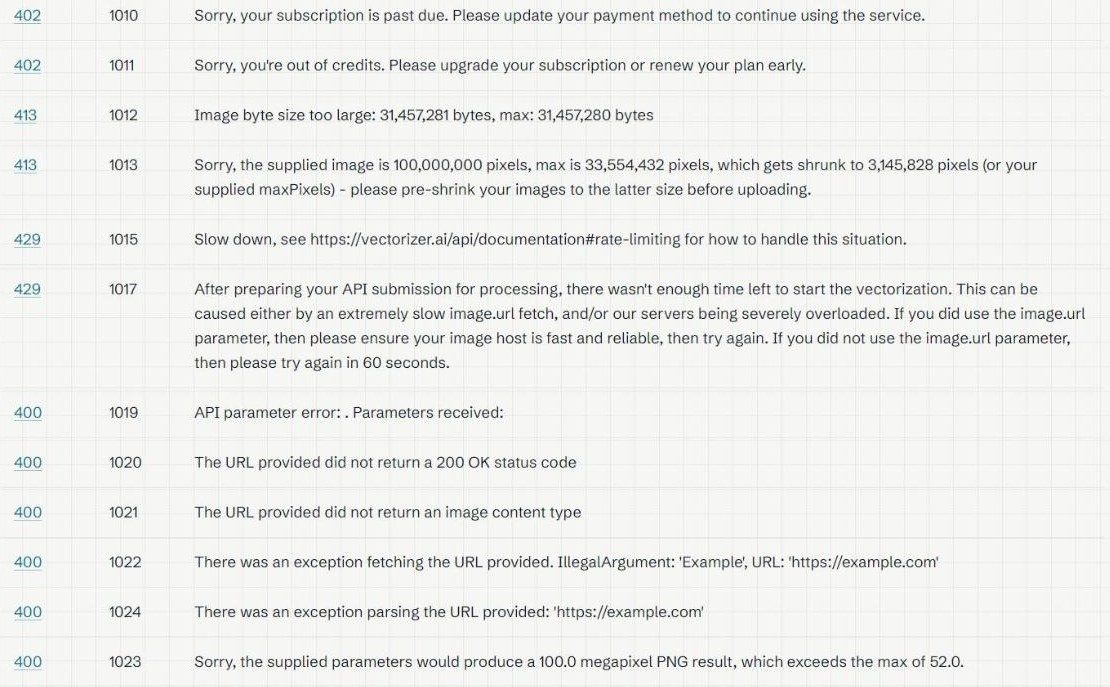
The error list, where the real limits of the service are written down (screenshot from vectorizer.ai)
Two of those Vectorizer AI API limits are clean round numbers in disguise, which suggests deliberate engineering limits rather than arbitrary ones. One is not: the default downscale target is printed as 3,145,828 pixels, while the tidy value in that family would be 3,145,728, which is three times 1024 squared. The two differ by exactly 100 pixels. It changes nothing in practice at this scale, and the maxPixels parameter overrides the default anyway, but anyone sizing images against that figure will notice.
The PNG ceiling needs one note, because by default the Vectorizer AI API renders PNG output at four times the vectorized image size. An image downscaled to roughly 3.1 megapixels and rendered at four times lands near 12.6 megapixels, about a quarter of the 52 megapixel limit, so the default path never comes close. That same four times rule sizes a preview, which the pricing table describes as a PNG four times larger than your input: two pages agreeing on one multiplier.
The error list is also a small lesson in how Vectorizer AI API billing works. HTTP 402 appears three separate times with three distinct messages: no API subscription, a subscription past due, or simply out of credits. Those are three very different operational problems and you can tell them apart from the status code alone, which is more than most APIs allow.
Output options: thirteen groups, including DXF for CAD
The output options reference is where the Vectorizer AI API stops looking like a thin wrapper over a model. There are thirteen option groups: file format, output size, SVG version, SVG options, DXF compatibility, draw style, shape stacking, group by, parameterized shapes, allowed curve types, line fit quality, gap filler and stroke style, holding more than forty individual parameters between them.
The DXF group is the clearest example of why the Vectorizer AI API option set matters. CAD software is particular about which curve types it will read, so you choose how much geometry to keep, and the company names the application it has confirmed each level against.
| Compatibility level | What is allowed | Confirmed against |
|---|---|---|
| Lines only | Every curve flattened to straight lines | Maximum compatibility downstream |
| Lines and arcs | Circular and elliptical arcs, no splines | LibreCAD |
| Lines, arcs and splines | All curve types, including Bezier | Autodesk TrueView 2024 |
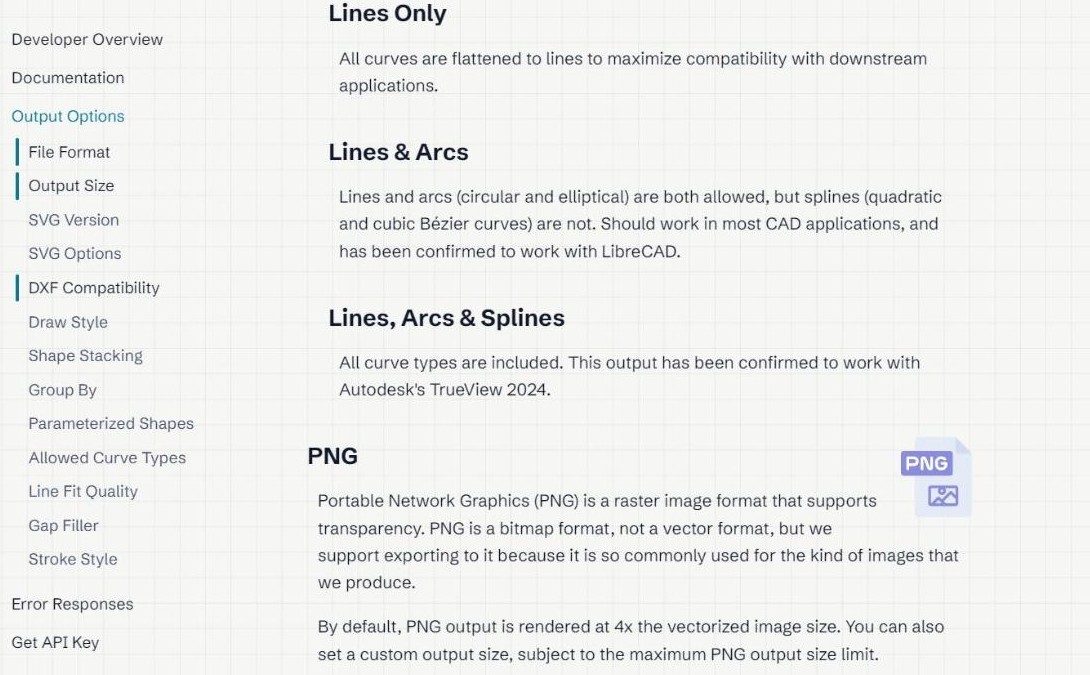
The three DXF compatibility levels, with the CAD applications the company says it has checked (screenshot from vectorizer.ai)
The Vectorizer AI API SVG side has the same flavour. You can emit SVG 1.0, SVG 1.1 or SVG Tiny 1.2, and the documentation explains that for this output the first two differ only in the header, that neither formally supports non-scaling strokes, and that the company allows them anyway because real viewers accept them. It even says SVG Tiny 1.2 has no practical advantage over SVG 1.1 in most circumstances. A vendor saying one of its own options is usually pointless is a good sign, and you can check the full output options reference yourself in a couple of minutes.
One parameter that does not do what its name suggests
In the Vectorizer AI API, processing.max_colors takes a value from 0 to 256, where 0 means unlimited and both 1 and 2 mean two colours. Read as a cap on the palette, it is not quite one. The gap filler is enabled by default, and when it is on the result also contains mixtures of the colours you selected, so a result built with max_colors set to four can contain more than four distinct fills.
This is not a hidden Vectorizer AI API gotcha. The company added a changelog line on 3 October 2023 specifically to clarify it, which means someone was caught by it, reported it, and the documentation was corrected. If you need an exact palette, for screen printing or a brand guideline, disable the gap filler. If you care more about how the result looks, leave it on.
What the changelog shows about the Vectorizer AI API
The changelog for the Vectorizer AI API runs from the initial release on 10 March 2023 to the most recent entry on 1 June 2026, thirteen dated lines in all. In order it is a tidy history: parameters expanded in May 2023, max_colors in June, output size options in August, modes in September, the Error JSON object and the account status endpoint in January 2024, image tokens plus the download and delete endpoints in September 2024.
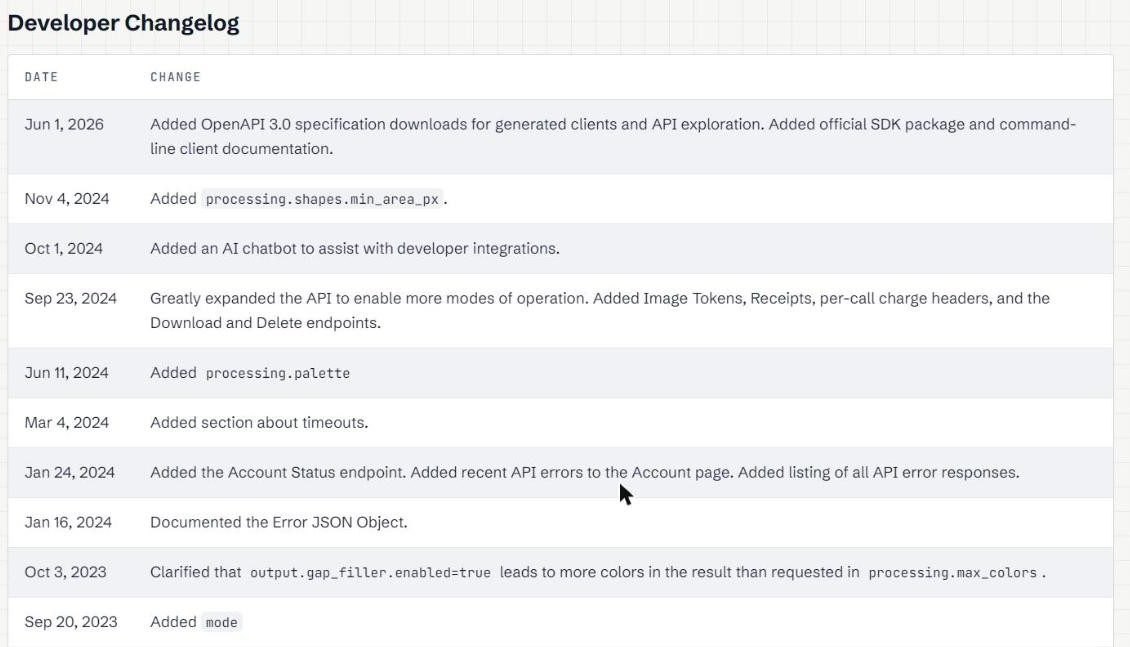
The developer changelog, from the 2023 launch to the most recent entry (screenshot from vectorizer.ai)
Then the Vectorizer AI API goes quiet. Between 4 November 2024, when processing.shapes.min_area_px was added, and 1 June 2026, there is no new API parameter at all, and the June 2026 entry adds OpenAPI downloads plus SDK and command-line documentation rather than anything you would change code for. Nineteen months without a parameter change can be read two ways; for an integration you intend to leave running, a stable contract and a vendor spending its time on client tooling is close to ideal.
Who the Vectorizer AI API fits, and who is better off in the Web App
Vectorizer.AI sells the Vectorizer AI API and a web app plan, and is unusually willing to point you at the cheaper one. The web app plan is 9.99 US dollars a month for unlimited web images with no API access, and the company says outright that for most users it is the best choice. API plans start at the same 9.99 dollars for 50 credits a month and run up to 4,999.99 dollars for 100,000 credits, which is 0.200 dollars per credit at the bottom and 0.050 at the top.
| You are | What to use | Why |
|---|---|---|
| A designer converting logos by hand | Web app plan | Unlimited images, no integration work, a human is already in the loop |
| A store or app converting user uploads | API plan | No human in the loop, and previews let the customer look before buying |
| A print or CNC shop needing several formats | API plan | Image tokens make the second to fifth format cost 0.100 each |
| A team with spiky monthly volume | API plan, sized to the average | Unused credits roll over up to five times the monthly allowance |
Rollover is the Vectorizer AI API detail worth planning around. Because unused credits accumulate to five times your monthly allowance, you size the plan to your average month rather than your worst, and the company recommends exactly that: start with the smallest plan that fits and upgrade when usage requires it. One procurement note: payment is by major credit card or PayPal, and Vectorizer.AI states that it does not accept purchase orders and does not issue invoices. Irrelevant to a solo developer, possibly decisive for a finance department. Current plans are listed when you visit Vectorizer.AI.
How this review was done
For this Vectorizer AI API review we read the developer overview, the full API documentation, the complete error response list, the output options reference and the pricing page on 4 November 2026, with prices shown in US dollars. Every figure above is published by Vectorizer.AI on one of those pages, the arithmetic in the tables is shown so you can repeat it, and company claims are attributed as company claims.
What we did not do: we did not buy a subscription and we did not run images through the production endpoints, so we make no claim about tracing accuracy, latency under load or support responsiveness. Anyone can test those free, because test mode costs nothing.
The short version
The Vectorizer AI API is a well-documented, narrowly scoped service that behaves like it was built by people who ship software. Free test mode, four endpoints, more than forty output parameters, an exhaustive public error list and named CAD applications for each DXF level add up to an API you can evaluate completely before paying anything. The per-action pricing rewards reading: previews cost ten per cent more end to end, extra formats cost a tenth, and storage quietly passes the cost of re-tracing after a hundred days.
The things to go into the Vectorizer AI API knowing are small but real. The smallest plan costs four times as much per credit as the largest, the Python SDK is not on PyPI yet, there are no purchase orders or invoices, and the thread ramp for large batches runs to hours. None of them are hidden.
Overall: 8.7 / 10. Documentation and pricing transparency are the strongest parts, and the free test mode means the usual risk of integrating against a paid API mostly disappears. If you need image vectorization inside your own software and your language is on the SDK list, this is an easy service to recommend trying, and you can start with the free test mode before committing to a plan.